
Brochures, catalogues, product sheets, annual reports and packaging are usually designed in Adobe InDesign. When those documents need to be translated, copying text out of the layout and pasting translations back in is slow, error prone and expensive. The IDML file format solves that problem. It lets translators work on the text while the design stays intact, and it is the standard way to localize InDesign documents.
What Is an IDML File?
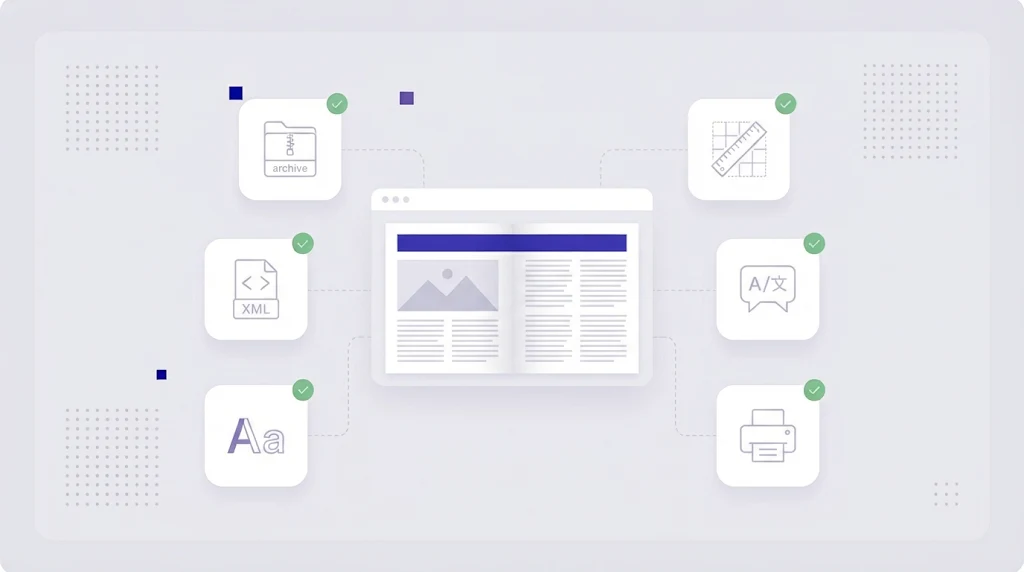
IDML stands for InDesign Markup Language. An .idml file is an open, XML based representation of an InDesign document. Technically it is a ZIP package containing many small XML files: stories (the text frames), spreads (the page layout), styles, font references and metadata. Adobe introduced IDML so documents could be exchanged between InDesign versions and processed by other software, which is exactly what translation tools need.
Because the text lives in separate story files, a CAT tool can extract only the translatable content, keep paragraph and character styles as protected tags, and rebuild the document with the translated text in exactly the same layout.
IDML vs INDD: What Is the Difference?
- INDD is InDesign's native, binary working file. Only InDesign can open it, and translation tools cannot read it directly.
- IDML is the open, XML based interchange format. It can be opened by newer and older InDesign versions and by CAT tools and translation management systems.
In short: designers work in INDD, translators work in IDML.
How to Export an IDML File From InDesign
- Open the document in InDesign.
- Choose File, Save As (or Export, depending on your version).
- Select InDesign Markup (IDML) as the format.
- Save one IDML per document, and package fonts and linked images separately so the designer can rebuild the final files.
Adobe's help pages on exporting and publishing from InDesign describe the options for each version.
How to Translate an IDML File Step by Step
- Prepare the source. Remove unused text, hidden layers and old versions. Make sure text is live and not converted to outlines or embedded in images.
- Upload the IDML to a translation management system or CAT tool. The text is split into segments, and formatting such as bold, italics and line breaks becomes protected tags.
- Pre-translate with translation memory from previous editions and an AI translation engine for new text.
- Translate and review in the CAT editor, following your glossary for product names and technical terms.
- Run QA checks for missing tags, numbers and terminology with automated QA.
- Export the translated IDML and open it in InDesign.
- Desktop publishing (DTP) check. A designer fixes text overflow, hyphenation and line breaks, then creates the final PDF for print or web.
Keeping Tags and Formatting Intact
IDML text is full of inline formatting: character styles, index markers, hyperlinks, footnotes and special characters. In a CAT tool these appear as tags. If a tag is deleted or moved incorrectly, the exported file can lose formatting or fail to open. AI auto tag placement inserts tags in the right position in the translation automatically, which saves a lot of manual work on heavily formatted documents.
Common IDML Translation Problems and How to Avoid Them
Text expansion and overset text
German, French or Spanish text is often 15 to 35 percent longer than English. Text frames overflow and a red plus sign appears in InDesign. Design with spare space, use flexible frames and plan time for DTP after translation.
Fonts that do not support the target language
Many decorative fonts lack characters for Central European, Cyrillic, Greek or Asian scripts. Check font coverage before translation and choose fallback fonts per language.
Text inside images
Text baked into images or converted to outlines cannot be extracted from IDML. Keep text live, or provide editable image source files separately.
Right to left languages
Arabic and Hebrew need an InDesign version with right to left support and a mirrored layout. Plan these languages as a separate DTP task.
Hard returns and manual line breaks
Designers often force line breaks to make English look good. These breaks end up in the middle of translated sentences. Clean them up before export.
Why Use a TMS Instead of Copy and Paste?
Catalogues and manuals are updated every season. With IDML in a TMS, the second edition reuses every unchanged sentence from memory, so you only pay for new and changed text, and layout stays consistent across languages. Copy and paste workflows lose that history every time. Our guide on saving money with translation memory shows how quickly these savings add up.
Translate IDML Files With WordBeam
WordBeam opens IDML files directly alongside DOCX, PPTX, XLSX, XLIFF and many other supported file formats. Text is segmented, styles are protected as tags, and translators work with memory, glossary, AI engines and QA in one place. Export the translated IDML and hand it straight to your designer. Try WordBeam free with your next InDesign project.
Frequently Asked Questions
Can I open an IDML file without InDesign?
You can translate the text in a CAT tool or TMS without InDesign, but you need InDesign to view the final layout and create the PDF.
Is IDML the same as an InDesign package?
No. An InDesign package is a folder with the INDD file, fonts and links. IDML is a single interchange file that contains the document structure and text.
Why do translators ask for IDML instead of PDF?
PDF is a final output format. Text extracted from PDF loses layout and styles, so the document must be rebuilt by hand. IDML keeps the structure, so the translated document can be produced automatically.