
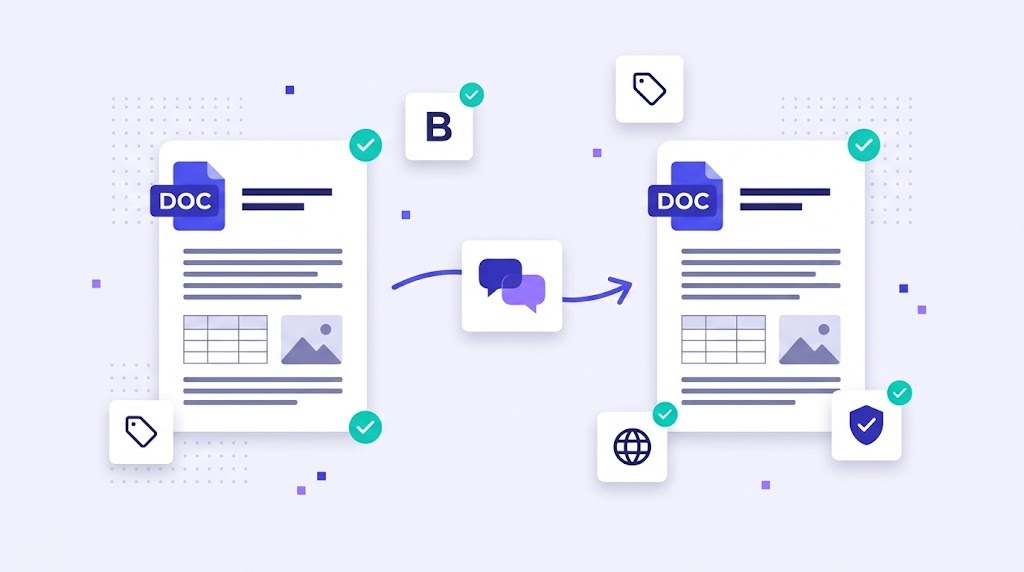
Translating the text in a Word document is the easy part. Keeping the bold words bold, the tables aligned, the footnotes linked and the page count reasonable is where most people lose hours. Copying text into a translator and pasting it back almost always breaks something. This guide explains how to translate a Word document (DOCX) the professional way, so the result looks like it was written in the target language from the start.
Why DOCX Files Are Harder Than They Look
A DOCX file is not a simple text file. It is a compressed package of XML files that follows the Office Open XML standard (ISO/IEC 29500), as described in Microsoft's Open XML documentation. Text is split into many small pieces called runs, each carrying its own formatting. A single sentence with one bold word and one hyperlink can be stored as five or six separate pieces. When you copy and paste, or use a basic online translator, that structure is easily lost.
Common Problems When Translating Word Documents
- Lost formatting. Bold, italics, links and colors disappear or land on the wrong words.
- Text expansion. German, French or Spanish text is often longer than English, so tables overflow and pages shift.
- Hidden content. Text boxes, headers, footers, footnotes, comments and alt text are easy to miss.
- Tracked changes. Unaccepted revisions can end up translated twice or not at all.
- Fields and cross-references. Tables of contents, page numbers and captions break if their codes are edited.
- Text in images. Screenshots and diagrams with embedded text are not touched by any translation tool.
How to Translate a Word Document Step by Step
1. Prepare the source file
Accept or reject all tracked changes, delete comments that should not be translated, and use real styles for headings and lists instead of manual formatting. Remove unnecessary manual line breaks inside sentences, because they split segments and confuse translators and machine translation alike.
2. Use a CAT tool instead of copy and paste
A CAT tool extracts only the translatable text from the DOCX, splits it into segments and shows formatting as protected tags. Translators work on clean sentences, and the tool rebuilds the document with the original layout when the work is done.
3. Handle tags correctly
Tags represent formatting such as bold text or links. They must appear in the translation in the right place, even when word order changes. AI auto tag placement saves a lot of time here, especially in documents with heavy formatting.
4. Reuse translation memory and terminology
Contracts, manuals and reports often repeat whole paragraphs. Translation memory fills in those repeats automatically, and a term base makes sure product names and key terms are always translated the same way.
5. Pre-translate with AI, then edit
For many documents, machine translation or an LLM can produce a solid first draft that a linguist then reviews. For legal, medical or marketing documents, keep full human review in the process.
6. Run QA and check the layout
Before delivery, run automated checks for missing tags, numbers and untranslated segments. Then open the translated DOCX in Word and check page breaks, tables, the table of contents and any text that overflows.
Bilingual DOCX for Review
Subject matter experts often prefer to review in Word rather than in a translation tool. A bilingual DOCX shows source and target side by side in a table, so reviewers can comment or edit the translation directly. Their changes can then be imported back so translation memory stays up to date.
Copy and Paste vs CAT Tool
| Copy and paste / online translator | CAT tool | |
|---|---|---|
| Formatting | Often lost or misplaced | Preserved through tags |
| Headers, footers, text boxes | Easily missed | Extracted automatically |
| Repeated text | Translated again each time | Reused from translation memory |
| Terminology | Inconsistent | Checked against a term base |
| Quality checks | Manual only | Automated QA plus review |
Segmentation is one of the less visible factors in translation quality. If you want to go deeper, read is segmentation damaging your professional translation. For a broader overview of document types and approaches, see types of translation explained.
Translating DOCX Files in WordBeam
WordBeam supports DOCX and bilingual DOCX, along with XLSX, PPTX, IDML, XLIFF and many other formats. Upload the file, and WordBeam extracts the text, protects formatting as tags, applies translation memory and your glossary, and can pre-translate with DeepL, GPT, Claude or Grok. Translators and reviewers work in one CAT editor with QA checks, and you download a translated DOCX with the original layout.
Frequently Asked Questions
Can I translate a Word document without losing formatting?
Yes. Use a CAT tool or TMS that imports DOCX files and protects formatting as tags, rather than copying text in and out of a translator.
Does Microsoft Word have a built-in translator?
Word offers a basic translate feature that is useful for understanding a document. For professional work, you still need terminology control, translation memory and review.
How do I deal with text in images?
Ask for the editable source files of graphics, or recreate the images with translated text. No document translation tool can edit text that is part of a picture.