
If you have ever uploaded captions to YouTube, added subtitles to a training video or downloaded subtitles for a film, you have probably used an SRT file. It is the simplest and most widely supported subtitle format in the world. That simplicity also makes it easy to break: one wrong comma in a timecode and the subtitles stop showing. This guide explains how SRT files work and how to translate them safely.
What Is an SRT File?
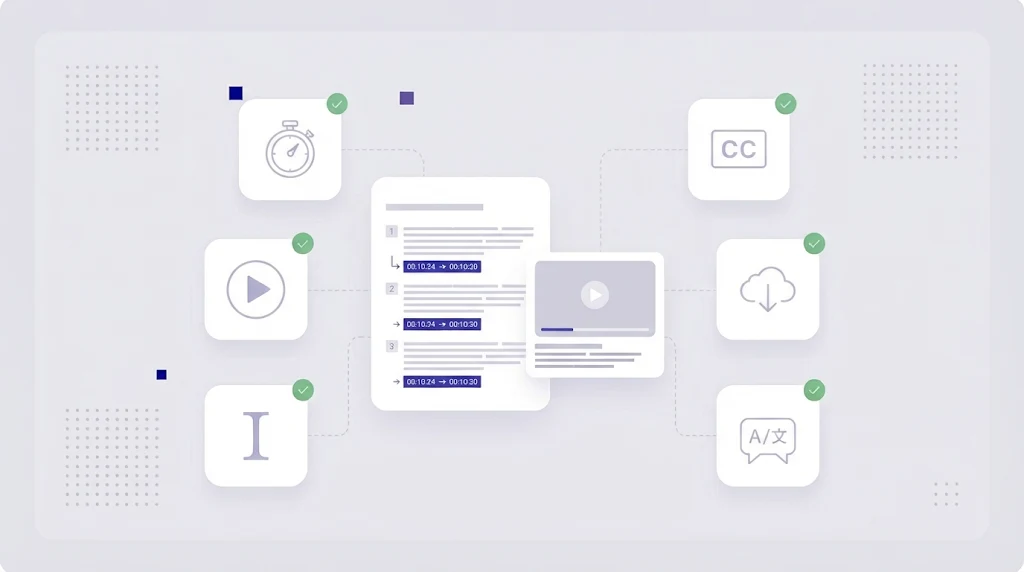
An SRT file (.srt) is a plain text subtitle file in the SubRip format. It contains numbered subtitle blocks, each with a start and end time and the text to display. Video players, editing software and platforms such as YouTube, Vimeo, LinkedIn and most learning management systems can read SRT files, which is why it has become the default exchange format for subtitles.
How an SRT File Is Structured
Every subtitle block has four parts:
- A sequence number (1, 2, 3...).
- A timecode line in the format hours:minutes:seconds,milliseconds, with an arrow between start and end time.
- One or two lines of subtitle text.
- A blank line that separates it from the next block.
A short example looks like this:
1
00:00:01,000 --> 00:00:03,500
Welcome to the WordBeam tutorial.

2
00:00:03,800 --> 00:00:07,200
Today we will translate our first project.
Note that SRT uses a comma before the milliseconds, not a period. WebVTT, the web subtitle format, uses a period and adds a header line, which is one of the most common sources of conversion errors.
How to Create or Edit an SRT File
You can write an SRT file in any plain text editor, as long as you save it with UTF-8 encoding so accented and non Latin characters display correctly. In practice, most teams generate a first version with automatic speech recognition, then correct the transcript and timing in a subtitle editor or video editing software. Keep these readability rules in mind:
- Maximum two lines per subtitle.
- Roughly 42 characters per line for most Latin script languages.
- Reading speed of about 15 to 17 characters per second.
- Minimum display time of around one second, and short gaps between subtitles.
- Break lines at natural phrase boundaries, not in the middle of a name or expression.
How to Translate an SRT File
Translating SRT in a word processor is risky: autocorrect changes arrows and commas, line numbers get translated, and blocks get merged. A CAT tool that supports SRT treats the numbers and timecodes as protected data and only shows the subtitle text for translation.
- Upload the SRT to a translation management system. Each subtitle becomes a segment, and timecodes are locked.
- Apply terminology from your glossary, especially product names and UI labels that appear on screen.
- Pre-translate with translation memory for recurring phrases in a video series and machine translation for the rest.
- Edit for length. Translations are often longer than the source. Condense the meaning so each subtitle still fits reading speed limits instead of translating word for word.
- Run QA checks for line length, characters per second, numbers and empty segments with automated QA.
- Export the translated SRT with the original timecodes and test it on the actual video.
Should Timecodes Change When You Translate?
Usually not. Keeping the original timing is faster and keeps all languages in sync. Adjust timing only when a language needs noticeably more reading time, or when you are creating subtitles for a dubbed version where speech timing has changed.
Common SRT Problems and Fixes
- Subtitles do not appear: check for periods instead of commas in timecodes, or a missing blank line between blocks.
- Strange characters: the file was saved in the wrong encoding. Re-save as UTF-8.
- Subtitles out of sync: the video was edited after the subtitles were created, or the frame rate differs. Shift timing in a subtitle editor.
- Overlapping subtitles: an end time is later than the next start time. Fix the timing so blocks do not overlap.
SRT vs Other Subtitle Formats
SRT is ideal for web video and social platforms. WebVTT adds styling and positioning for HTML5 players. Broadcast workflows in North America often require SCC closed captions, which follow stricter technical rules; read our guide to SCC files and closed captions. For the bigger picture on subtitles, voice-over and dubbing, see video localization explained.
Translate SRT Files With WordBeam
WordBeam supports SRT, SCC and many other formats used in software and content localization. Timecodes stay protected, translators see each subtitle as a clean segment, and memory, glossary, AI engines and QA keep every language consistent with your product and website. Start free and translate your next subtitle file in minutes.
Frequently Asked Questions
How do I open an SRT file?
Any text editor can open an SRT file. Media players such as VLC load it automatically when it has the same name as the video file and sits in the same folder.
Can I translate an SRT file with machine translation?
Yes, but use a tool that protects the timecodes and numbering, and have a human review the result for meaning, length and reading speed before publishing.
What is the difference between SRT and VTT?
Both are text subtitle formats. VTT (WebVTT) is designed for HTML5 video, uses a period in timecodes, starts with a WEBVTT header and supports styling. SRT is simpler and more widely supported.