
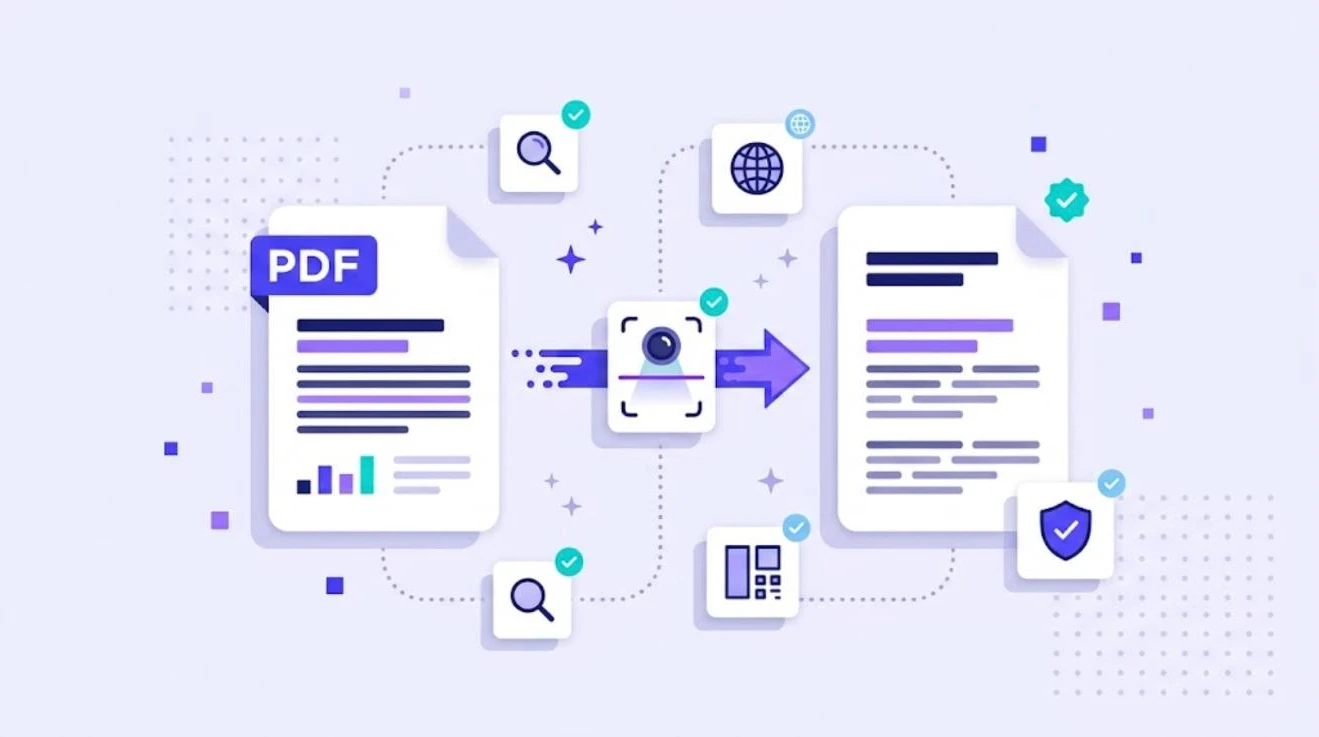
PDF is the most common format for sharing finished documents, and one of the hardest to translate well. Upload a PDF to a free online translator and you usually get either a wall of text or a layout that falls apart. This guide explains why PDF translation is tricky, which method fits which kind of PDF, and how professional teams get clean, consistent results.
Why PDF Files Are Hard to Translate
PDF was designed to display a document exactly the same on every device, not to be edited. The format, standardized as ISO 32000, stores text as positioned fragments on a page rather than as flowing paragraphs. A single sentence may be broken into several pieces, columns may be stored in an unexpected order, and headers or footers may sit in the middle of the text stream.
Some PDFs do not contain real text at all. Scanned documents are just images of pages, so the words must first be recognized with OCR before anything can be translated.
Three Types of PDF, Three Approaches
| PDF type | How to recognize it | Best approach |
|---|---|---|
| Exported from an editable source (Word, InDesign, PowerPoint) | You can select and copy text | Ask for the source file and translate that instead |
| Text-based PDF with no source available | Text is selectable, source file is lost | Convert to DOCX, clean up, translate in a CAT tool |
| Scanned PDF | Text cannot be selected | Run OCR, check the result, then convert and translate |
Step 1: Always Ask for the Source File
This one question saves more time than any tool. Most business PDFs were exported from Word, InDesign or PowerPoint. Translating the original file keeps the layout intact, and you simply export a new PDF at the end. See our guides on translating Word documents and InDesign IDML files.
Step 2: Convert the PDF to an Editable Format
When no source exists, convert the PDF to DOCX with a good converter. Then spend a few minutes cleaning the result: join sentences broken across lines, remove manual line breaks, fix columns that were mixed together and delete text boxes that only hold page numbers. Every minute spent here makes translation, review and layout easier.
Step 3: OCR Scanned Pages
For scanned documents, OCR converts images into text. Quality depends heavily on the scan, so always compare the recognized text with the original, especially numbers, names and dates. Errors introduced by OCR will be faithfully translated into every language.
Step 4: Translate in a CAT Tool
Once you have a clean DOCX, translate it in a CAT tool instead of copying text into a web translator. Formatting is protected as tags, translation memory reuses repeated content, and a glossary keeps legal or technical terms consistent. AI engines can pre-translate, with a linguist reviewing the result.
Step 5: Rebuild and Check the Layout
Export the translated DOCX, compare it page by page with the original PDF and adjust where text expansion pushed content onto new pages. Then export the final PDF. For documents that must look identical to the original, a desktop publishing specialist may recreate the layout.
Free Online PDF Translators: When Are They Enough?
Free tools are fine for understanding the gist of a document you received. They are not suitable for anything you will publish, sign or send to a customer. They offer no terminology control, no review step, no translation memory and often no guarantee about how your file is stored. For contracts, manuals, medical or financial documents, use a professional workflow. Our article on technical translation explains why accuracy matters so much for these documents.
PDF Translation Checklist
- Is there an editable source file? If yes, use it.
- Is the text selectable, or does it need OCR?
- Has the converted file been cleaned of broken lines and stray text boxes?
- Are glossary terms and translation memory attached?
- Has a native speaker reviewed the translation?
- Has the final layout been checked against the original?
- Do images or charts contain text that needs to be recreated?
How WordBeam Helps
WordBeam works with the editable formats behind most PDFs, including DOCX, PPTX, XLSX and IDML. Convert or request the source file, upload it, and WordBeam extracts the text, protects formatting, applies translation memory and your term base and pre-translates with DeepL, GPT, Claude or Grok. Reviewers check everything in one editor with QA checks, and you export a file ready to save as PDF again.
Frequently Asked Questions
Can I translate a PDF and keep the same layout?
Yes, if you translate the original source file or a clean DOCX conversion and then export a new PDF. Translating text directly inside a PDF rarely keeps the layout intact.
How do I translate a scanned PDF?
Run OCR to turn the images into text, check the recognized text carefully, convert it to an editable format and translate that file.
Is it safe to upload confidential PDFs to free translators?
Check the terms of the service first. For confidential documents, use a professional platform with clear data handling and access control.